Rakanworks: Asset Management & Setup Guide
This comprehensive guide covers both the administrative setup of your inventory and the operational process of assigning assets to staff members.
Phase 1: Configuring Asset Settings (Admin Setup)
Before assigning an asset, you must define your item catalog. This ensures that the options available to your team are standardized and accurate.
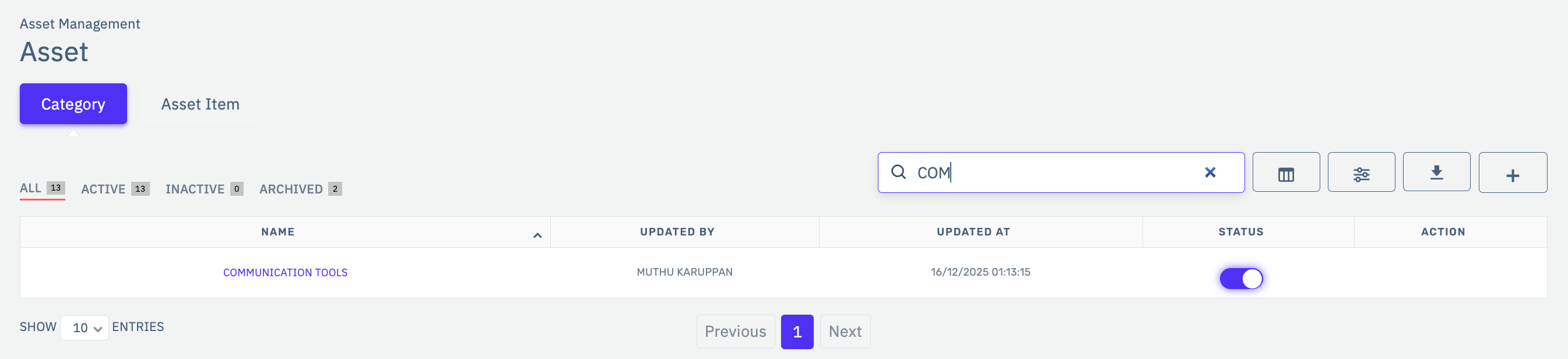
1. Define Categories
Navigate: Go to Asset Management > Asset Setting.
Action: Click the Category tab.
Add: Click the [+] button to create broad groupings (e.g., Communication Tools or Safety Gear).
Manage: Use the Status Toggle (Purple/Green) to enable or disable categories.
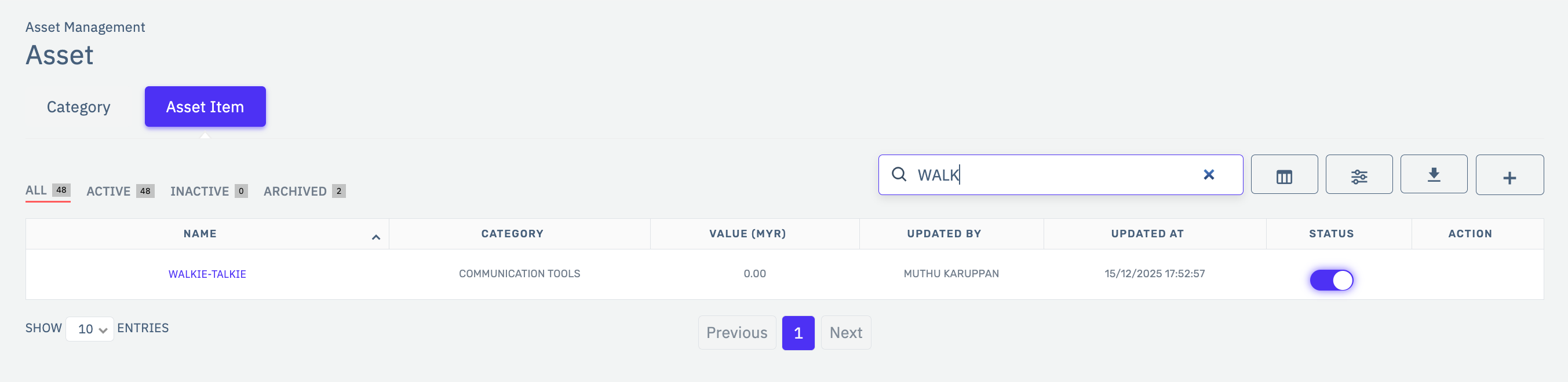
2. Add Specific Items
Switch Tab: Click on the Asset Item tab.
Create: Click the [+] button to define specific products (e.g., Walkie-Talkie).
Link: Assign the item to its respective Category and save.
Verification: Ensure the item is set to Active so it appears in the issuance dropdowns.
Phase 2: Adding Assets to Staff (Issuance)
Once your catalog is ready, you can record items or cash issued to individual employees.
1. Access Employee Profile
Locate the employee (e.g., MEHEDI) via the staff directory.
In the left-hand sidebar, select the Asset tab.
Click the Add Asset button at the top right of the table.
2. Complete the Asset Form
Select Type of Asset: Choose Cash (for advances) or Items (for hardware).
Choose Item: If you selected "Items," pick your pre-configured product (e.g., Walkie-Talkie) from the Type of Items dropdown.
Enter Value: Input the total amount in MYR.
Select Transaction Date: Use the calendar icon to pick the date the asset was handed over.
Choose Mode of Delivery: Select the method (e.g., Delivery, Self-Pickup, or Bank Transfer).
Assign Safekeeper: Choose the staff member responsible for the transaction from the Safekeeper list.
Add Remarks: Note details like serial numbers or specific use cases.
Finalize: Click the blue Add button.
Navigation Tips & Troubleshooting
Status Check: If an item is missing during the "Add Asset" phase, return to Asset Settings and ensure both the Category and Item are toggled to Active.
Audit Trail: Once saved, the record will display the Updated By and Updated Date for accountability.
Data Integrity: Always verify the employee's Name and ID at the top of the sidebar before clicking Add to prevent cross-posting errors.
Pro Tip: While backdating is allowed in the Transaction Date field, avoid doing so across different financial quarters unless authorized, as it may impact accounting reports.
Was this article helpful?
That’s Great!
Thank you for your feedback
Sorry! We couldn't be helpful
Thank you for your feedback
Feedback sent
We appreciate your effort and will try to fix the article