This guide provides a step-by-step walkthrough for administrators to record assets—either Cash or Items—assigned to an employee within the Rakanworks portal.
1. Introduction
The Asset module is designed to track and manage company resources or monetary advances issued to staff members. Keeping these records updated ensures financial transparency and accountability for both the employer and the employee.
2. Getting Started
Before you begin, ensure you have navigated to the specific employee's profile where the asset needs to be recorded.
Locate the employee (e.g., MEHEDI) via the staff directory.
On the left-hand sidebar, scroll down and click on the Asset tab.
Click the Add Asset button located at the top right of the Asset table.
3. How-To Instructions: Adding an Asset
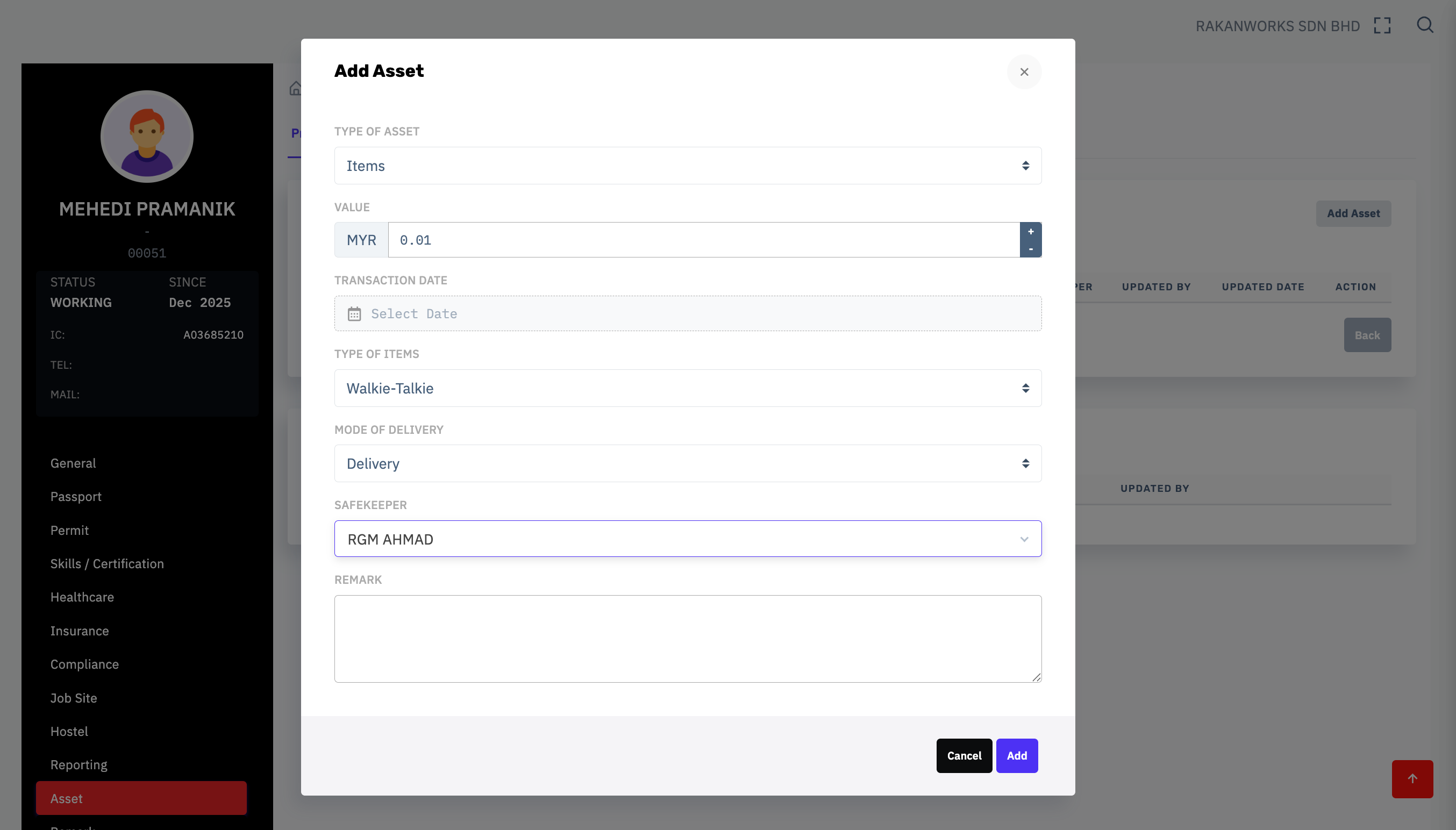
Follow these numbered steps to complete the Add Asset form as shown in the interface:
Select Type of Asset: Click the dropdown menu and choose between Cash (for monetary advances/allowances) or Items (for physical hardware or tools).
Enter Value: In the Value field, input the total amount in MYR. Use the + / - buttons if you need to adjust the numerical value precisely.
Select Transaction Date: Click the calendar icon in the Transaction Date field and select the date the asset was issued.
Choose Mode of Delivery: Select how the asset was handed over (e.g., Delivery, Self-Pickup, or Bank Transfer).
Assign Safekeeper: Choose the person responsible for overseeing this transaction from the Safekeeper dropdown (e.g., MUTHU KARUPPAN).
Add Remarks: Use the Remark text box to provide additional context, such as the purpose of the cash or the serial number of a physical item.
Save Entry: Click the blue Add button to finalize the record, or Cancel to discard changes.
4. Navigation & Tips
Visual Check: Ensure the employee’s name and ID (e.g., 00055) at the top of the sidebar are correct before hitting save to avoid cross-posting data.
Updates: Once added, the asset will appear in the list with columns for Updated By and Updated Date for audit trailing.
Pro Tip: Always double-check the Transaction Date. Backdating is allowed, but it may affect your monthly financial reporting if not handled carefully.
Was this article helpful?
That’s Great!
Thank you for your feedback
Sorry! We couldn't be helpful
Thank you for your feedback
Feedback sent
We appreciate your effort and will try to fix the article