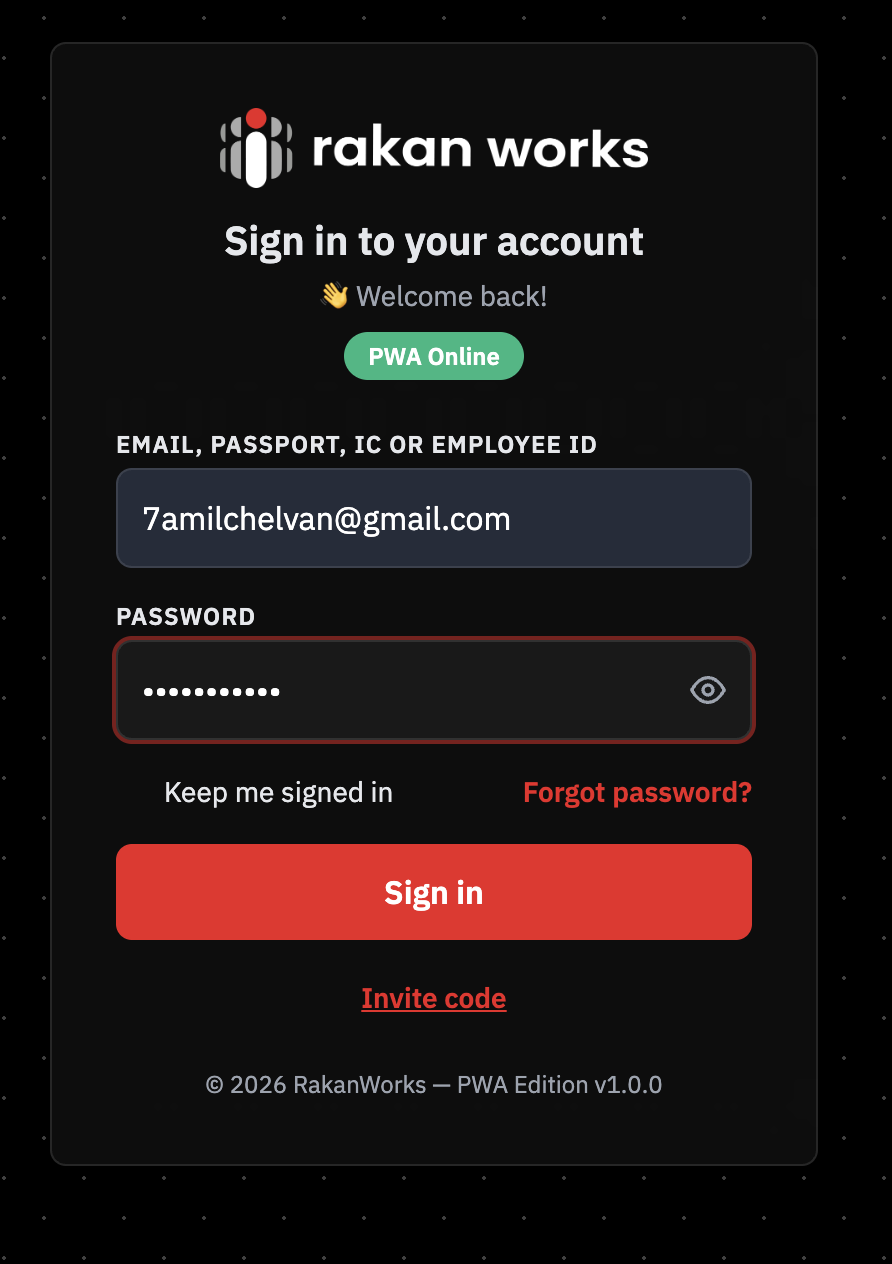
After successfully setup, login to PWA by staff's information
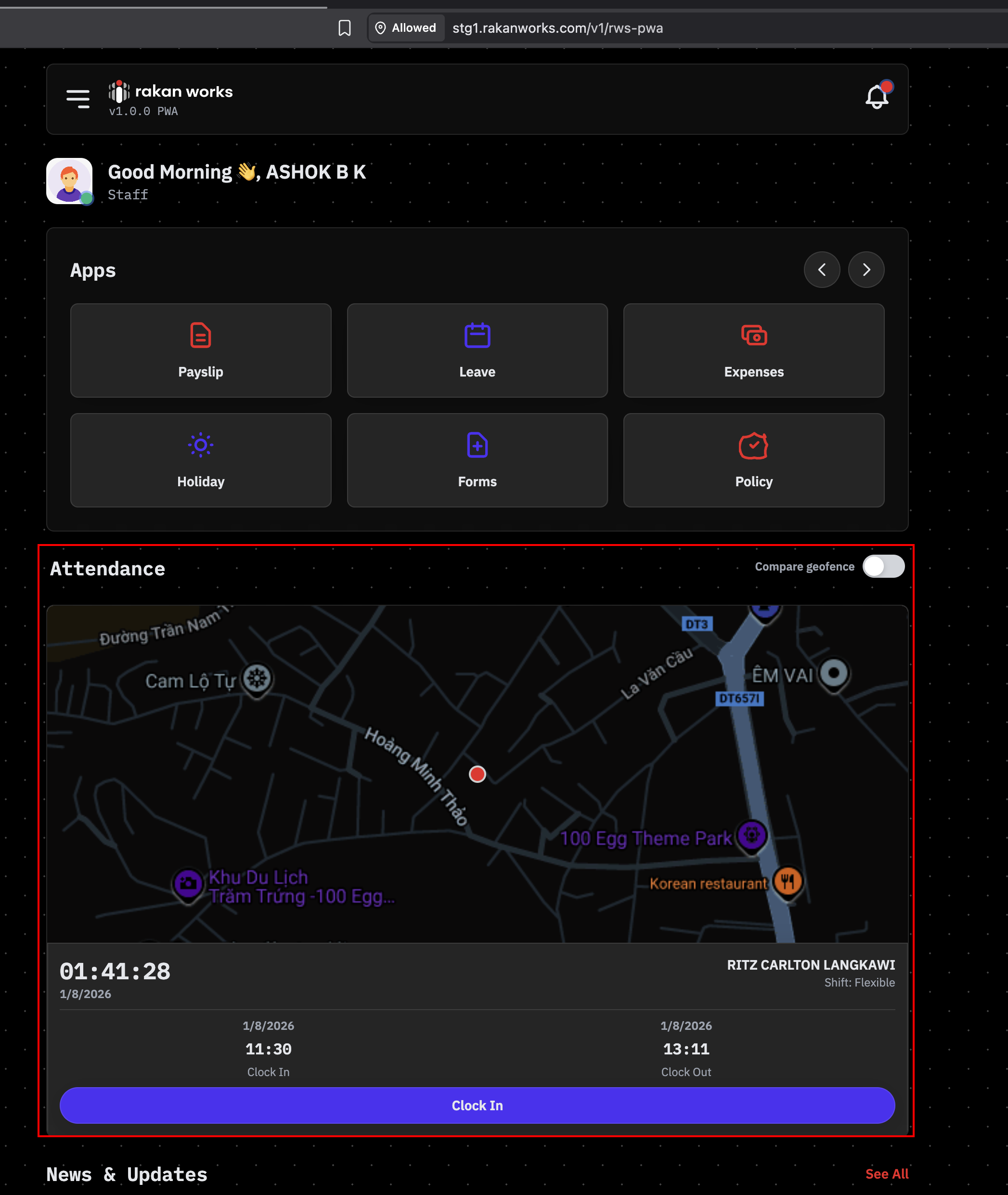
The Attendance module will be appear in Dashboard
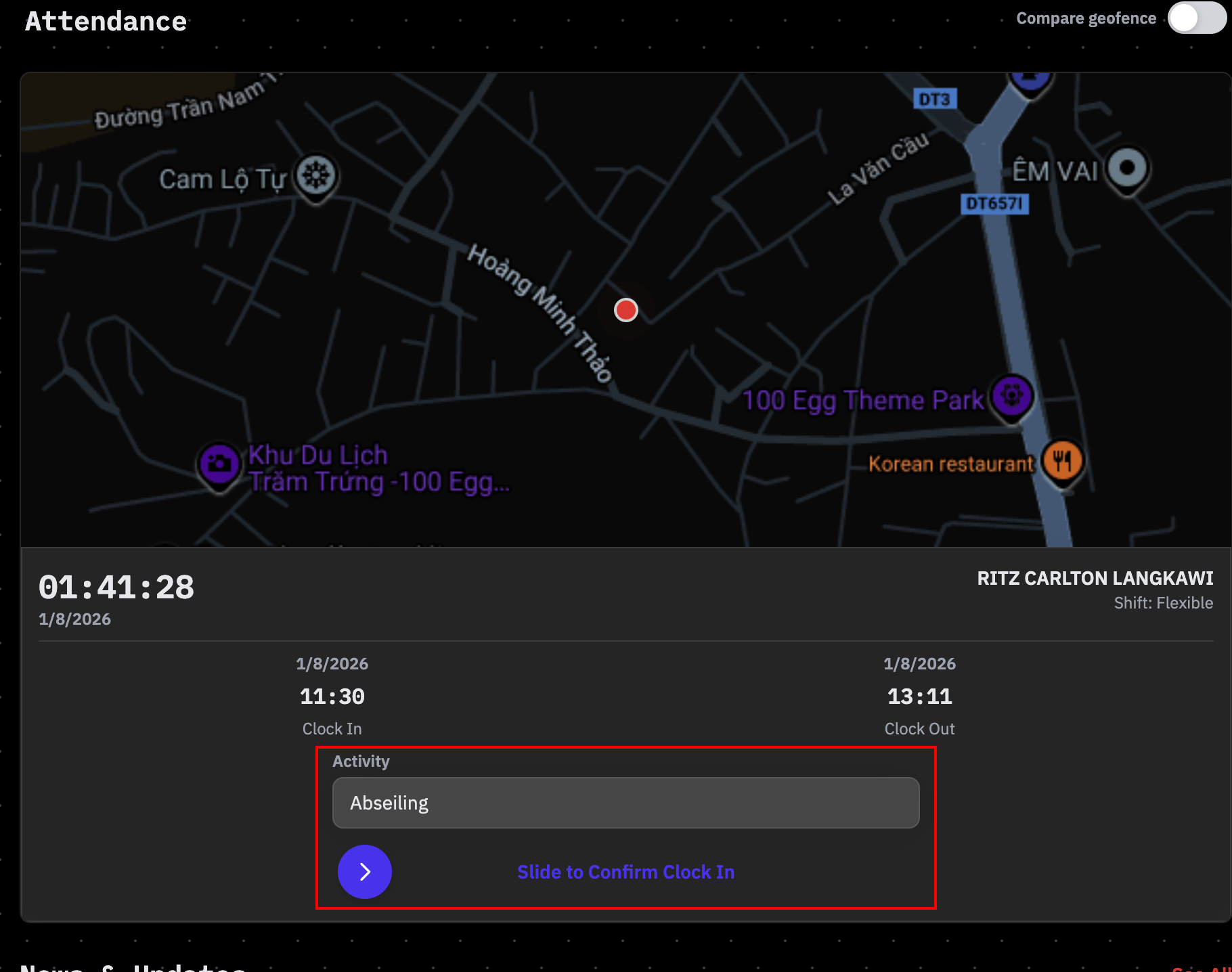
After press the Clock In button, the activity selections and a confirmation slider will appear
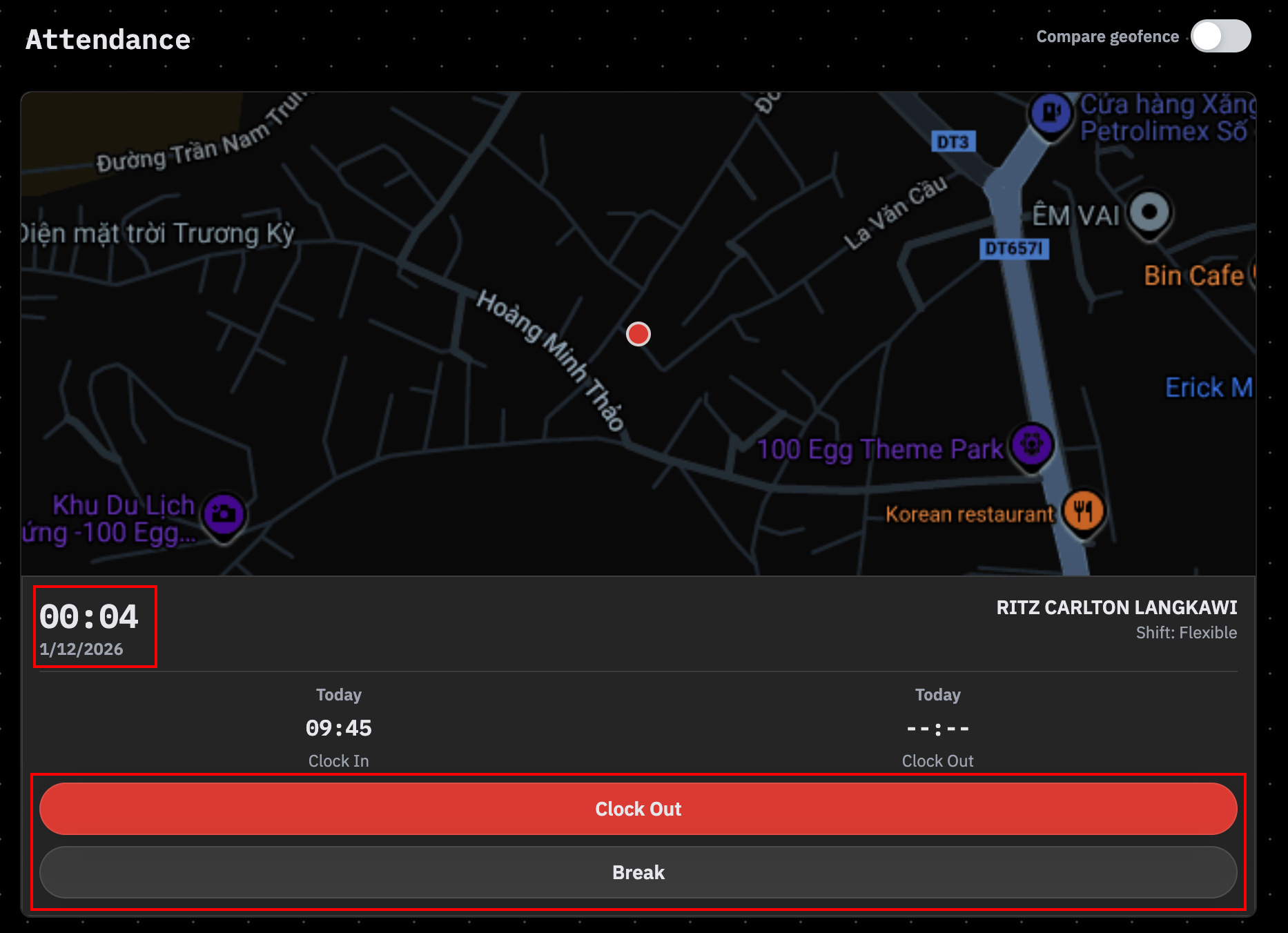
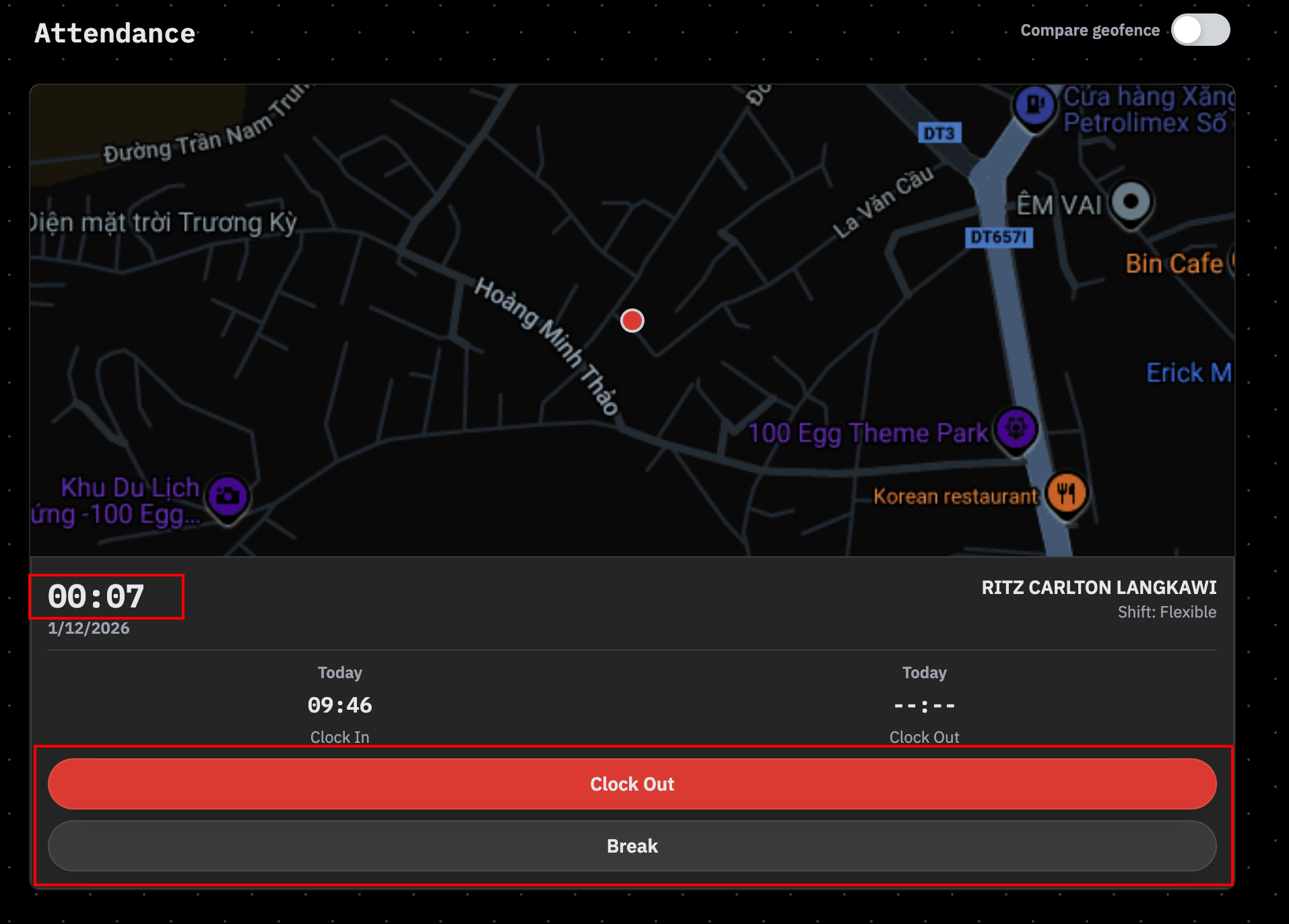
After confirmed, the timer start and show 2 buttons: Clock out and Break
All actions in Attendance module require slide to confirm. After confirmed to Break, the buttons will be: Clock In (Back to work after break) and Clock Out (Stop directly)
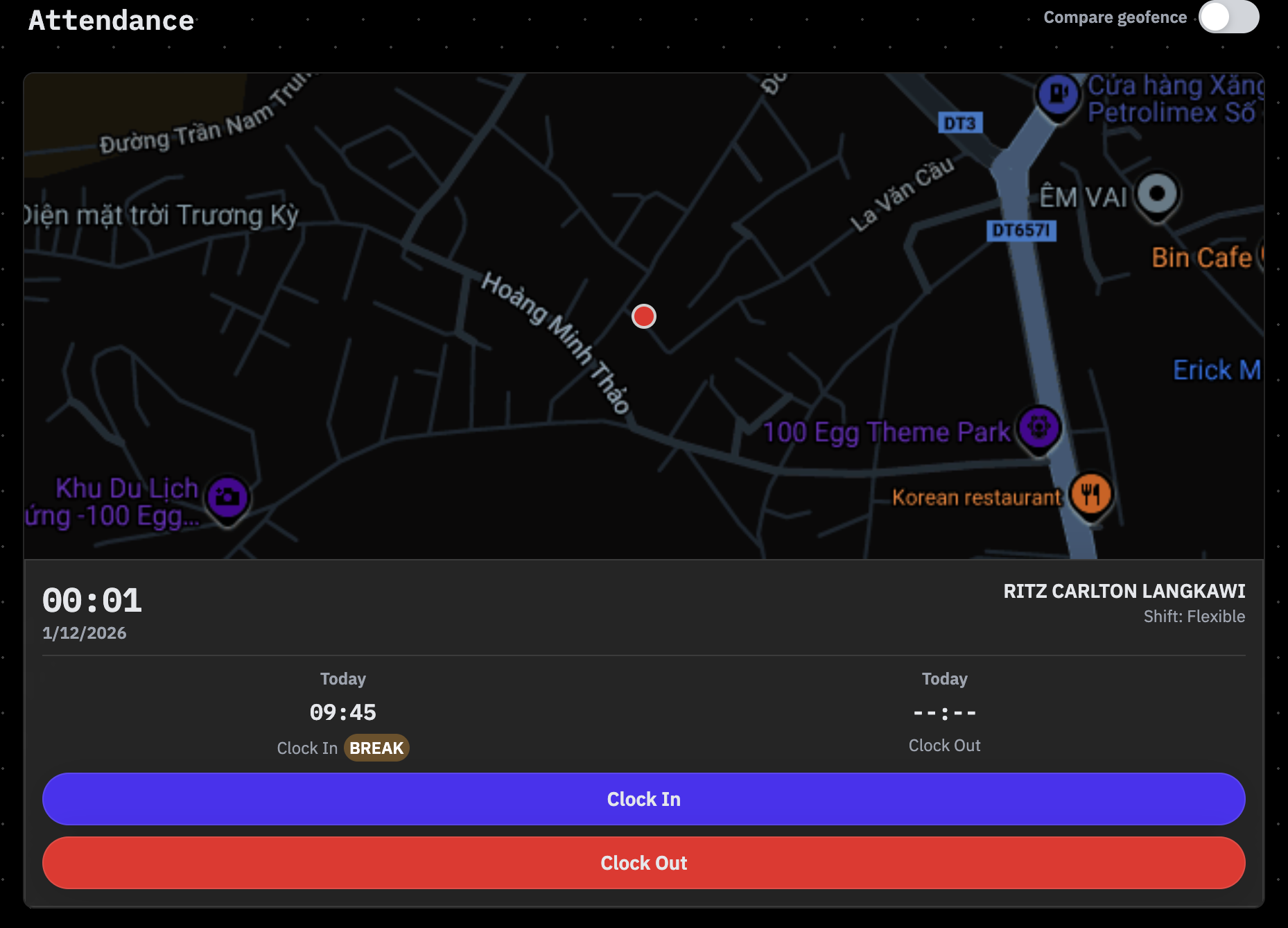
When the employee Clock In after Break, the timer will restart again as working hours.
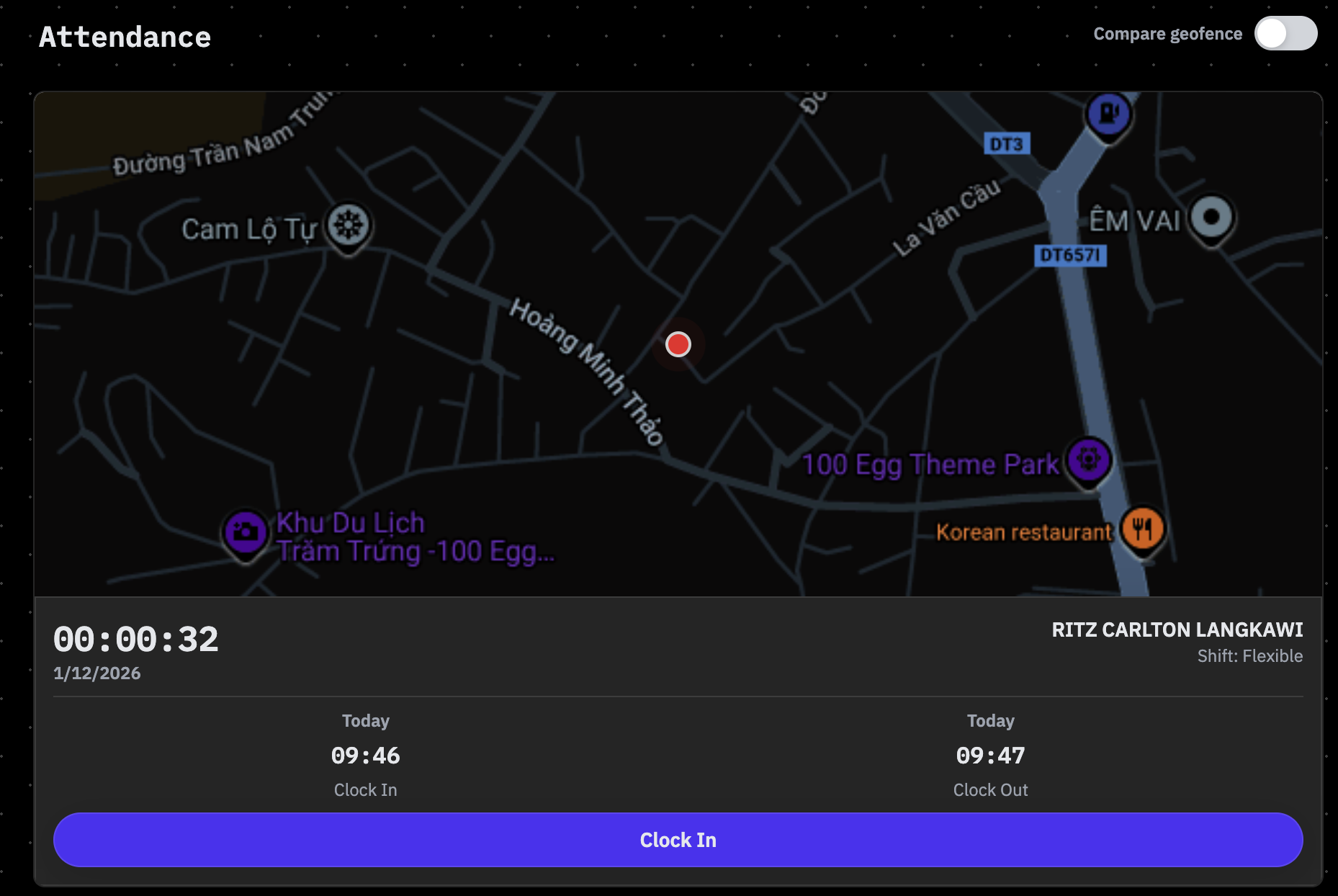
When the employee Clock Out, the timer will be stop and end the session
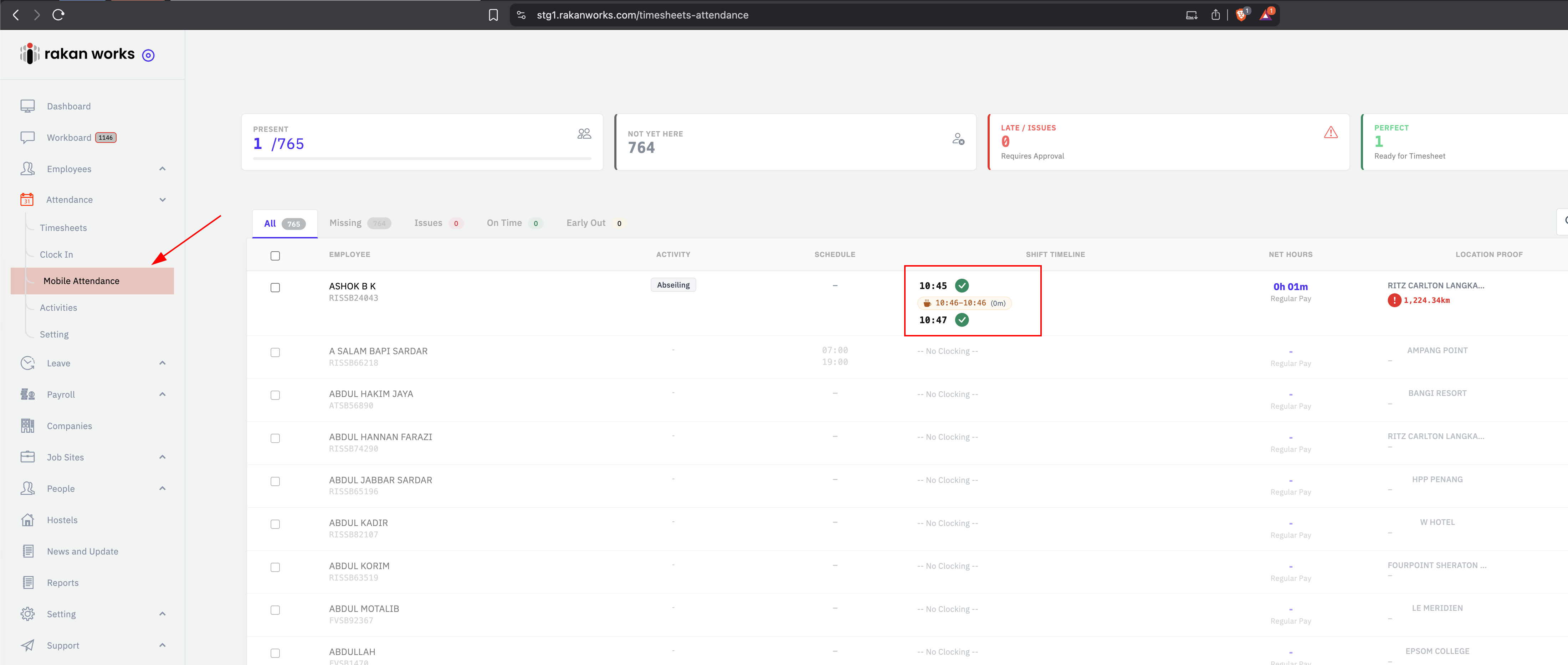
Admin can manage all mobile attendance sessions in menu Attendance => Mobile Attendance
Was this article helpful?
That’s Great!
Thank you for your feedback
Sorry! We couldn't be helpful
Thank you for your feedback
Feedback sent
We appreciate your effort and will try to fix the article