This guide provides a step-by-step walkthrough for HR Administrators to set up and manage Leave Policies within the Rakanworks platform. Defining these policies ensures that employee leave entitlements, accruals, and carry-forward rules are automated and consistent across the organization.
1. Introduction
The Leave Policy module is designed to centralize your company’s time-off rules. By configuring these settings, the system automatically calculates leave balances for your staff, handles public holiday exclusions, and manages year-end balance transfers.
2. Getting Started
Before you begin, ensure you have the specific details for the leave type you are creating (e.g., Annual Leave, Medical Leave, or Paternity Leave) and the list of staff members it applies to.
Navigation Path: From the main dashboard, go to the sidebar and click Leave > Policies.
3. Creating a New Policy
To initiate a new policy, click the purple Add button located at the top right of the Leave Policy screen. This will open the Policy Details modal.
Step-by-Step Instructions:
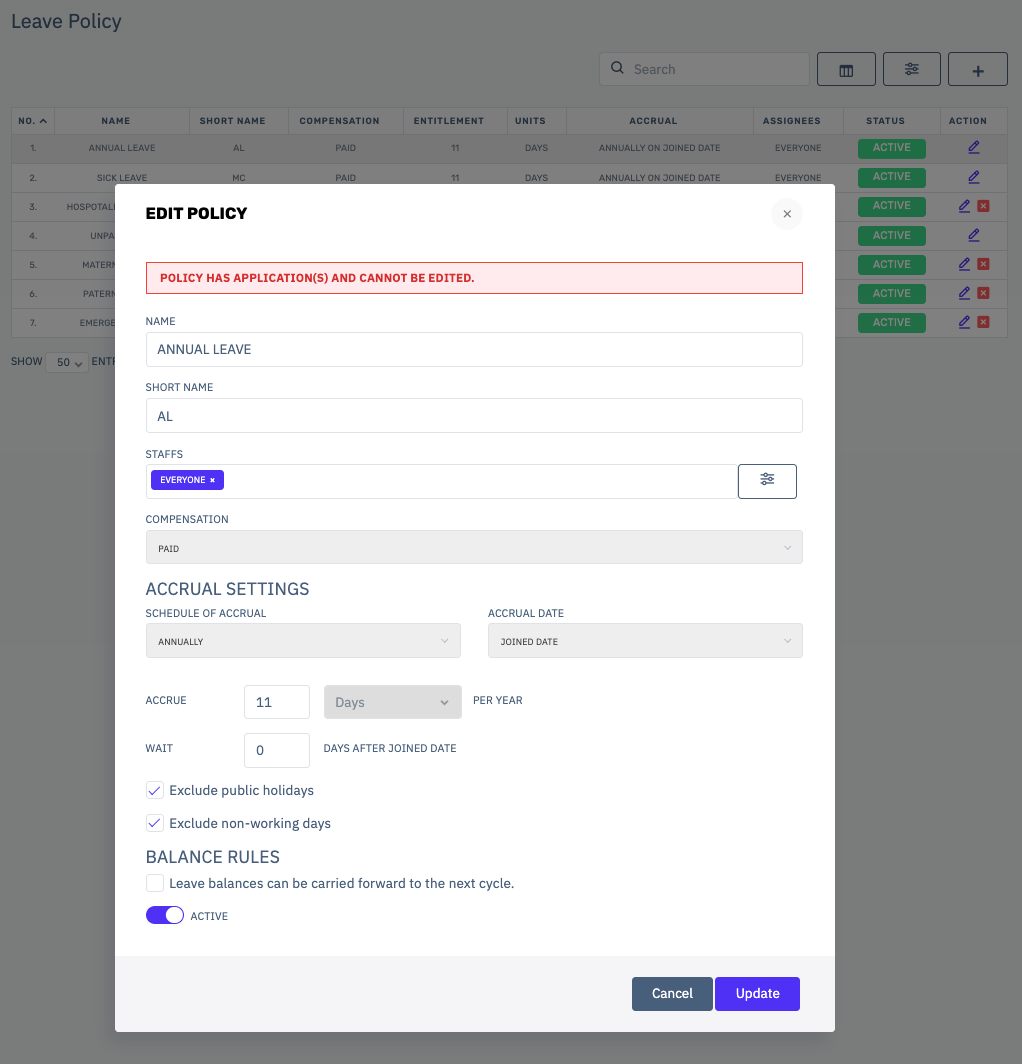
Name the Policy: In the NAME field, enter the full name of the leave (e.g., Annual Leave 2026).
Assign a Short Name: Enter a 2-3 letter code in the SHORT NAME field (e.g., AL) for quick identification in calendar views.
Assign Staffs: Click the field or the Filter Icon next to the STAFFS box to select which employees or departments this policy applies to.
Set Compensation: Use the COMPENSATION dropdown to select if this leave is Paid or Unpaid.
Configure Accrual Settings:
Schedule of Accrual: Choose how the leave is earned (e.g., Monthly, Yearly, or None for a lump sum).
Entitled: Enter the total number of Units (Days or Hours) granted for this policy.
Exclusions: Check the boxes for Exclude public holidays or Exclude non-working days to ensure these days aren't deducted from an employee's balance when they apply for leave.
Set Balance Rules: * Check the box Leave balances can be carried forward to the next cycle if you allow employees to roll over unused leave.
Activate & Save: Toggle the ACTIVE switch to green and click Save.
4. Managing Policies (Main Features)
Once created, your policies will appear in the main table. You can perform the following actions:
View Assignees: See how many staff members are currently tied to a specific policy.
Edit: Click the action icon (usually a pencil or three dots) to update rules for the next cycle.
Status Check: Quickly see which policies are Active or Inactive at a glance.
5. FAQs & Troubleshooting
Why isn't the leave balance showing for a specific employee? Ensure that the employee is correctly selected in the STAFFS section of the policy details and that the policy toggle is set to ACTIVE.
Can I change the accrual mid-year? Changes to accrual settings typically take effect in the next refresh cycle. It is recommended to create a new policy if there is a major structural change in entitlements.
6. Visual Reference
Refer to the interface layout below when navigating the Policy Details modal:
For further assistance, please contact the HR Systems Team or refer to the Support tab in the Rakanworks sidebar.
Was this article helpful?
That’s Great!
Thank you for your feedback
Sorry! We couldn't be helpful
Thank you for your feedback
Feedback sent
We appreciate your effort and will try to fix the article